CSV Format Reference
The exact column format for Quest imports.
Written By Dan
Last updated About 1 month ago
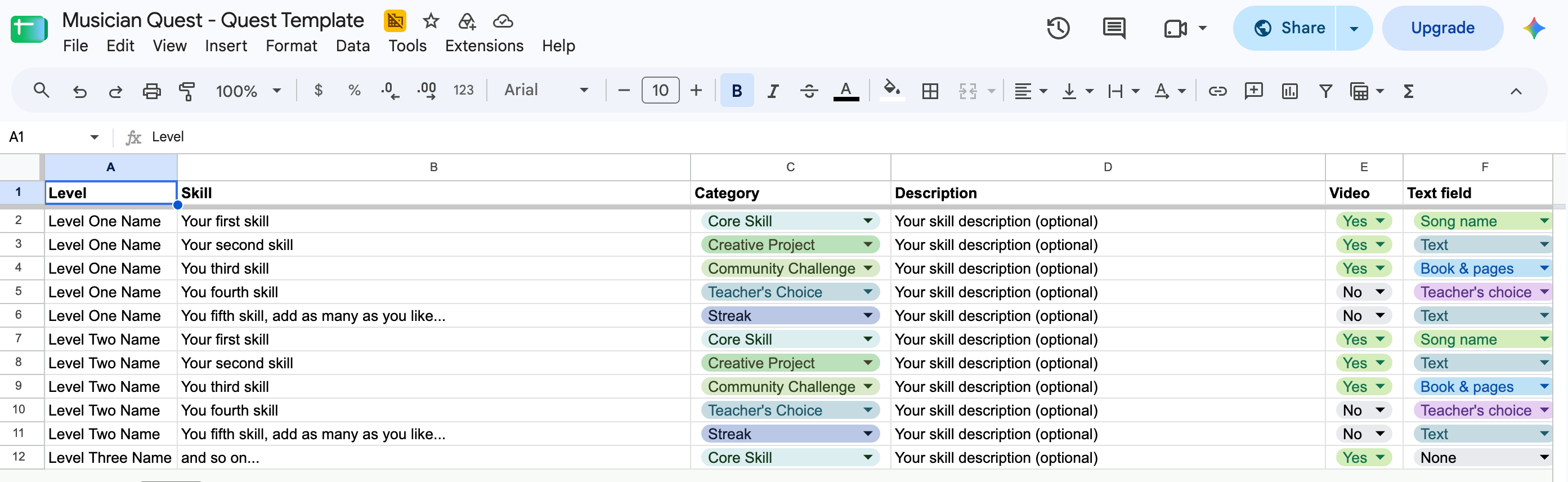
Quest CSV files use six columns.
We provide a Google Sheet template with these headers ready to go - this page documents exactly what each column does.
The columns
Formatting rules
One row = one skill. Levels are formed automatically from the Level column - list skills for the same Level on consecutive rows.
Level order follows row order. The first Level name to appear becomes Level 1, and so on.
Skill order within a Level follows row order as well.
A row with a Level name and no Skill creates an empty placeholder Level.
Keep the header row exactly as provided in the template.
Common Text field values: Song name, Book & pages, Teacher's choice, Teacher Text, or None.
Tips for a clean import
Draft in the Google Sheet template, then download as CSV - this avoids formatting surprises from other spreadsheet tools.
Review descriptions before importing rather than after: it's easier to polish language in a spreadsheet than one skill at a time in the editor.
After importing, open the Quest in the Quest Editor and spot-check a few Levels before assigning to teachers.
Exports use the same format
When you export a Quest, you get a CSV in this exact format - which is why any exported Quest can be re-imported by any school. Your curriculum is never locked in.
Was this helpful?
Still need help? Ask the team