The Quest Tab: Your Curriculum Home Base
Where owners create, edit, copy, export, upload, and assign Quests.
Written By Dan
Last updated About 1 month ago
The Quest tab on your Owner Dashboard
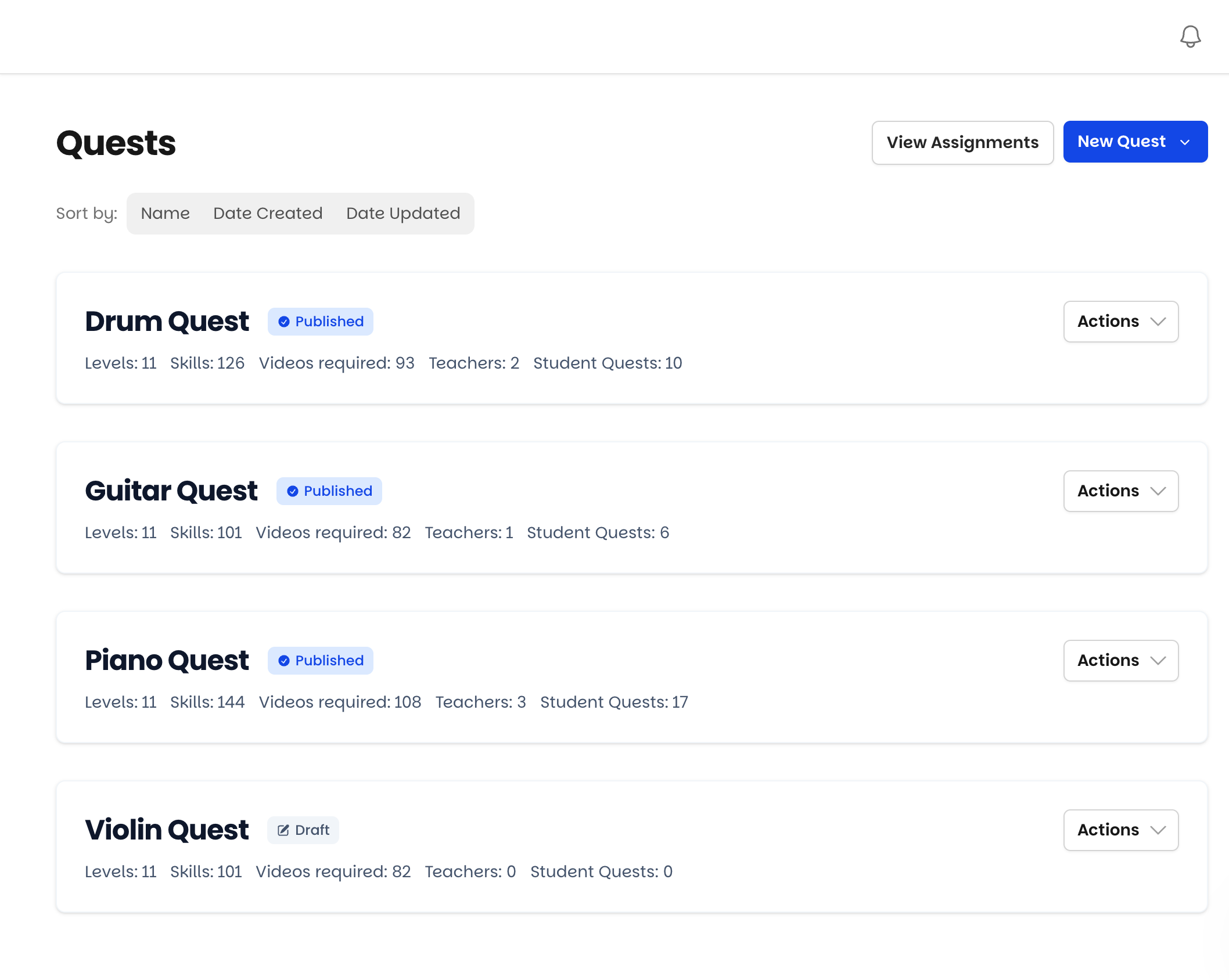
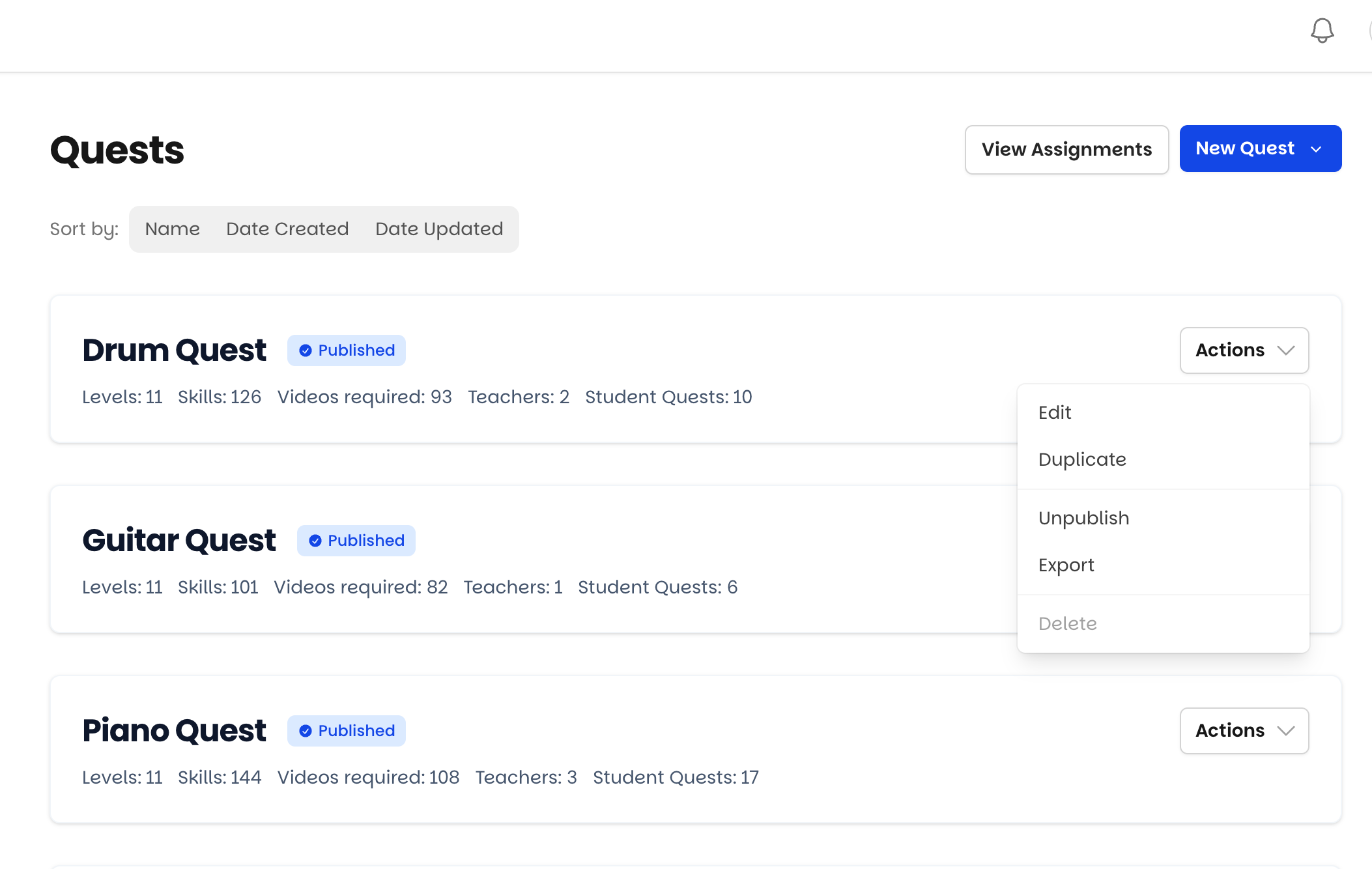
The Quest tab on your Owner Dashboard is the heart of the Owner account. Everything to do with your curriculum happens here: creating, editing, duplicating, deleting, exporting, and uploading Quests - plus assigning Quests to teachers.
What lives on the Quest tab
Your Quest library - every Quest in your account, including the ready-made Quests that come with it
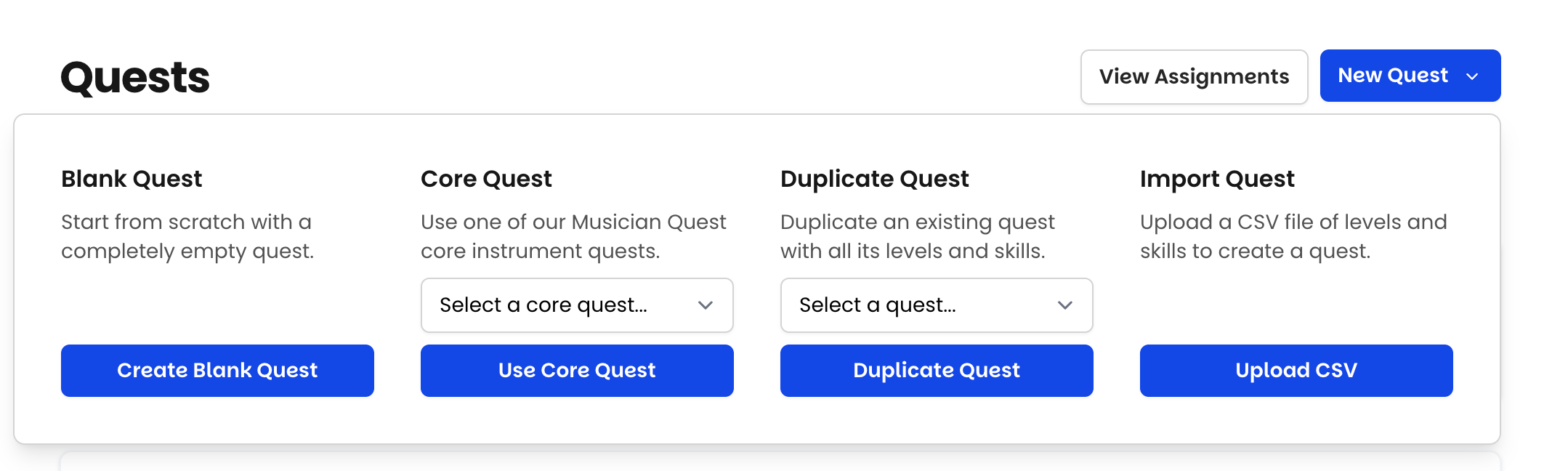
Quest creation - from scratch, by duplication, or by CSV upload
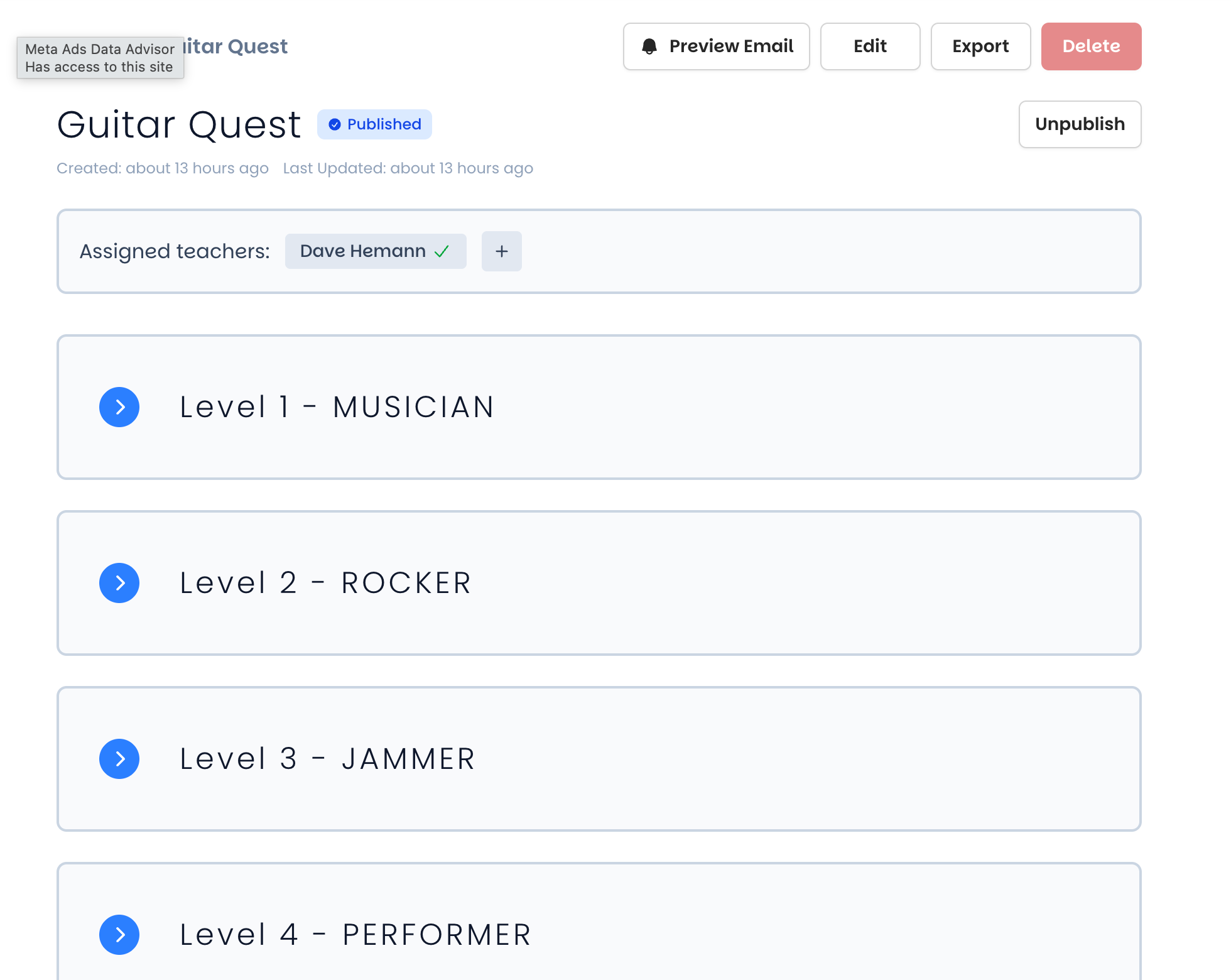
The Quest Editor - where you shape Levels and Skills
Export - download any Quest as a CSV to back it up or share it with another school
Teacher assignment - control which teachers can see and use which Quests
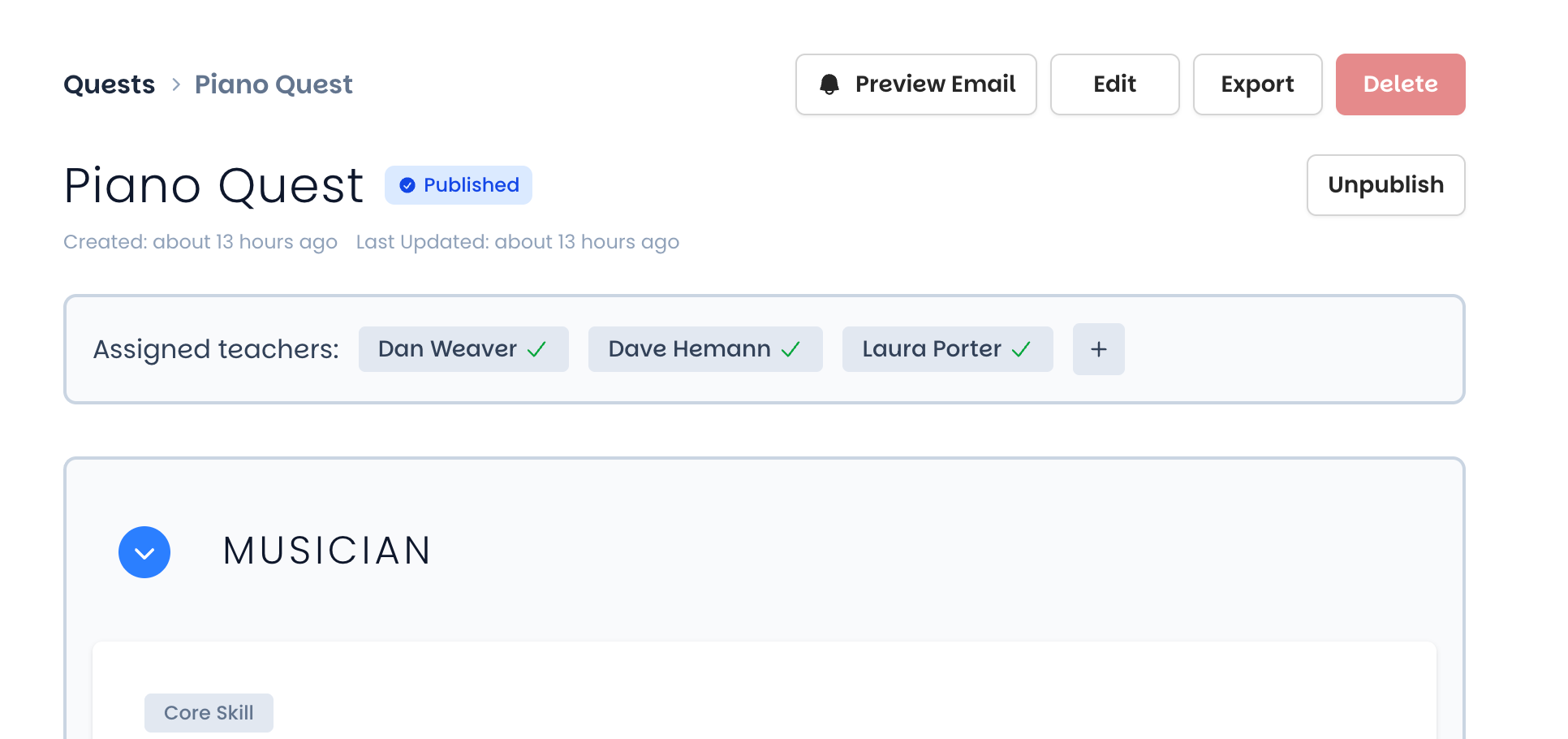
Quest states
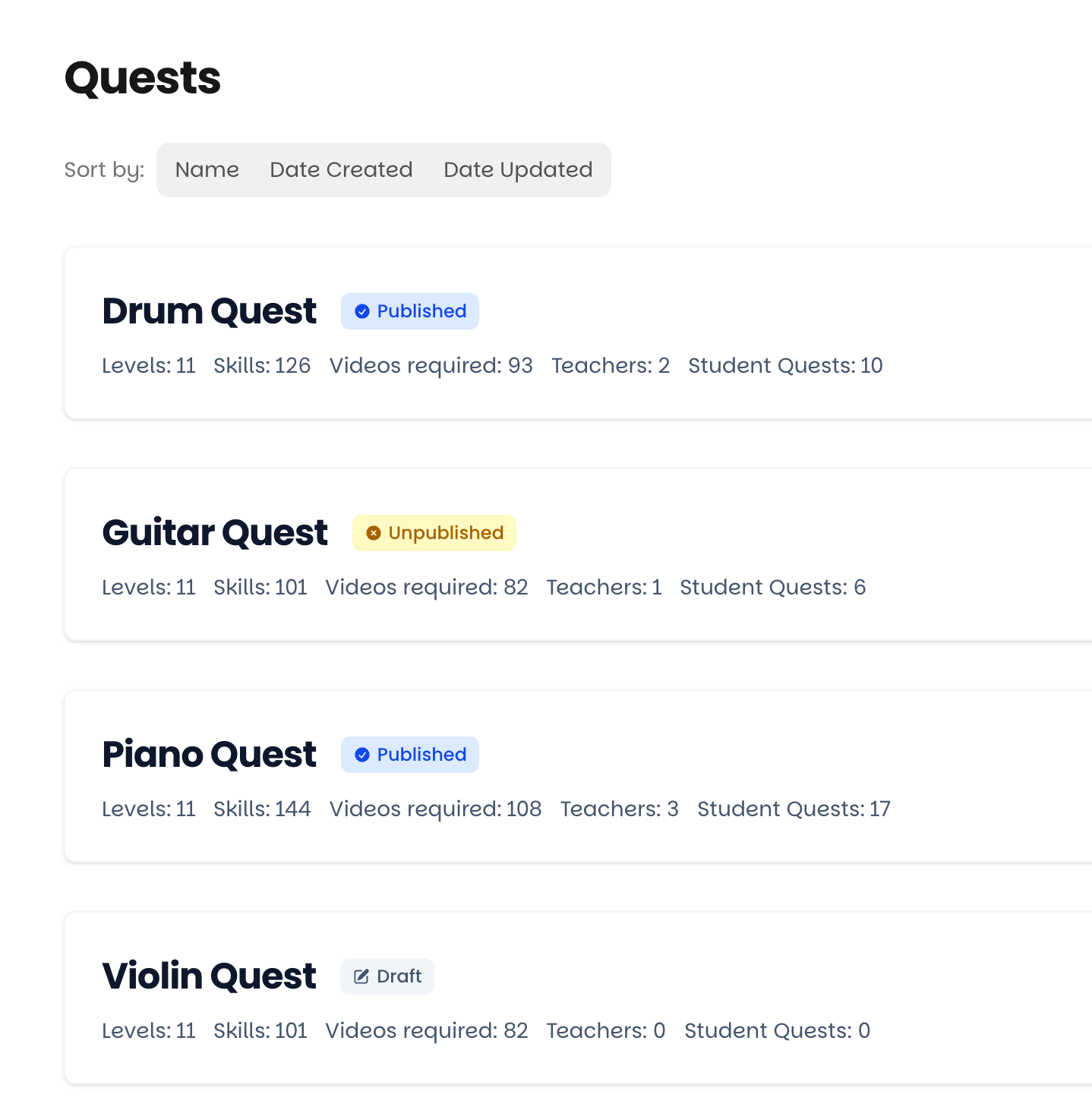
Every Quest is in one of four states, which control who can use it:
Draft - Assignable to teachers, but not yet to students. Use this while a Quest is still being built or reviewed.
Published - Assignable to teachers, and teachers can assign it to students. This is the live, in-use state.
Unpublished - Visible but closed to new students. Students already on it continue their journey; no new students can start it. Useful for retiring a curriculum gracefully.
Deleted - Permanently removed from your account.
👉 A practical rhythm: build in Draft, assign to teachers for review, then Publish when you're ready for students to start.
🔥 The one decision that shapes everything else
Before you build anything, decide your starting point: use the ready-made Quests, bring your existing curriculum in via CSV, or build from scratch. See Five Ways to Create a Quest for how to choose.
Was this helpful?
Still need help? Ask the team