Setting Up Your Family Account
Your welcome email, your password, and what happens next — setup takes about a minute.
Written By Dave Hemann
Last updated About 1 month ago
This article is written for families. Studio staff: family welcome emails send automatically when a teacher first assigns the student a Quest, and you can check delivery or resend from the Emails tab.
Welcome! If you're reading this, your musician's teacher has started them on their Quest - and your family has a front-row seat.
Your welcome email
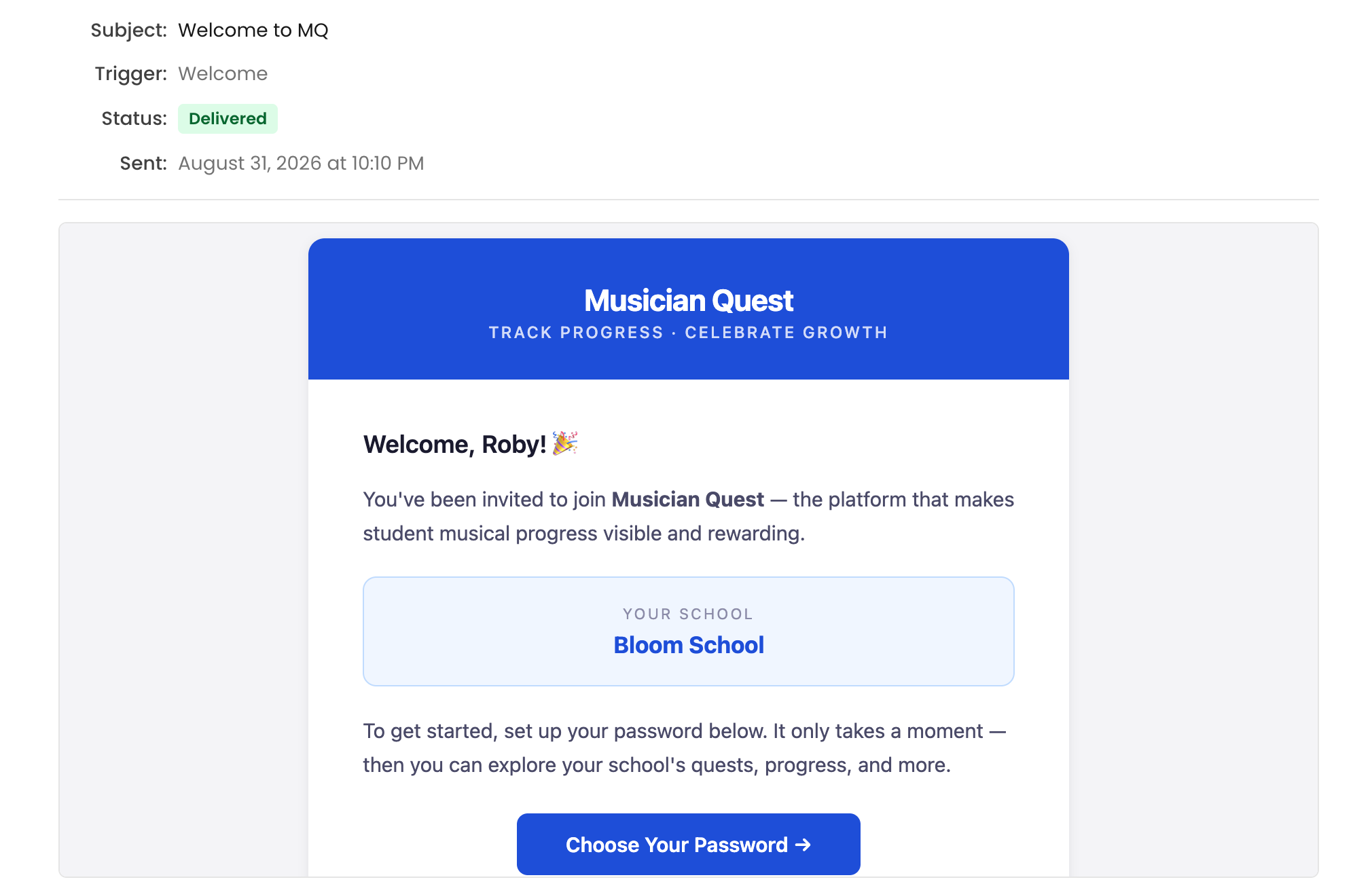
When your student is first assigned their Quest, you'll receive a welcome email from your school with a link to set your password. Click it, choose a password, and you're in - that's the entire setup. About a minute, once, and you never have to manage anything after that.
Didn't get the email?
Check your spam or promotions folder first - welcome emails occasionally land there. If it's genuinely missing, just ask your school's front desk; they can see exactly what was sent and resend it on the spot.
What happens from here
Nothing is required of you - everything arrives on its own:
After each lesson, a progress email arrives - everything from that lesson in one place: what your musician started working on, what they completed (often with a video of them doing it), and what's coming next.
When a Level is completed, the email celebrates the milestone - usually the same day your musician comes home with their Level reward.
Anytime you're curious, log in to your family portal to see everything: completed skills, videos, and what's coming next. (See: Using the Family Portal.)
One small tip
Add your school's email address to your contacts so progress emails never get filtered. You won't want to miss these - they tend to become the best thing in the inbox.
Was this helpful?
Still need help? Ask the team