Anatomy of a Skill
The fields that make up every Skill: name, description, category, video requirement, and the teacher text field.
Written By Dave Hemann
Last updated 29 days ago
Skills are the working unit of Musician Quest - the things teachers start, complete, and capture on video in every lesson.
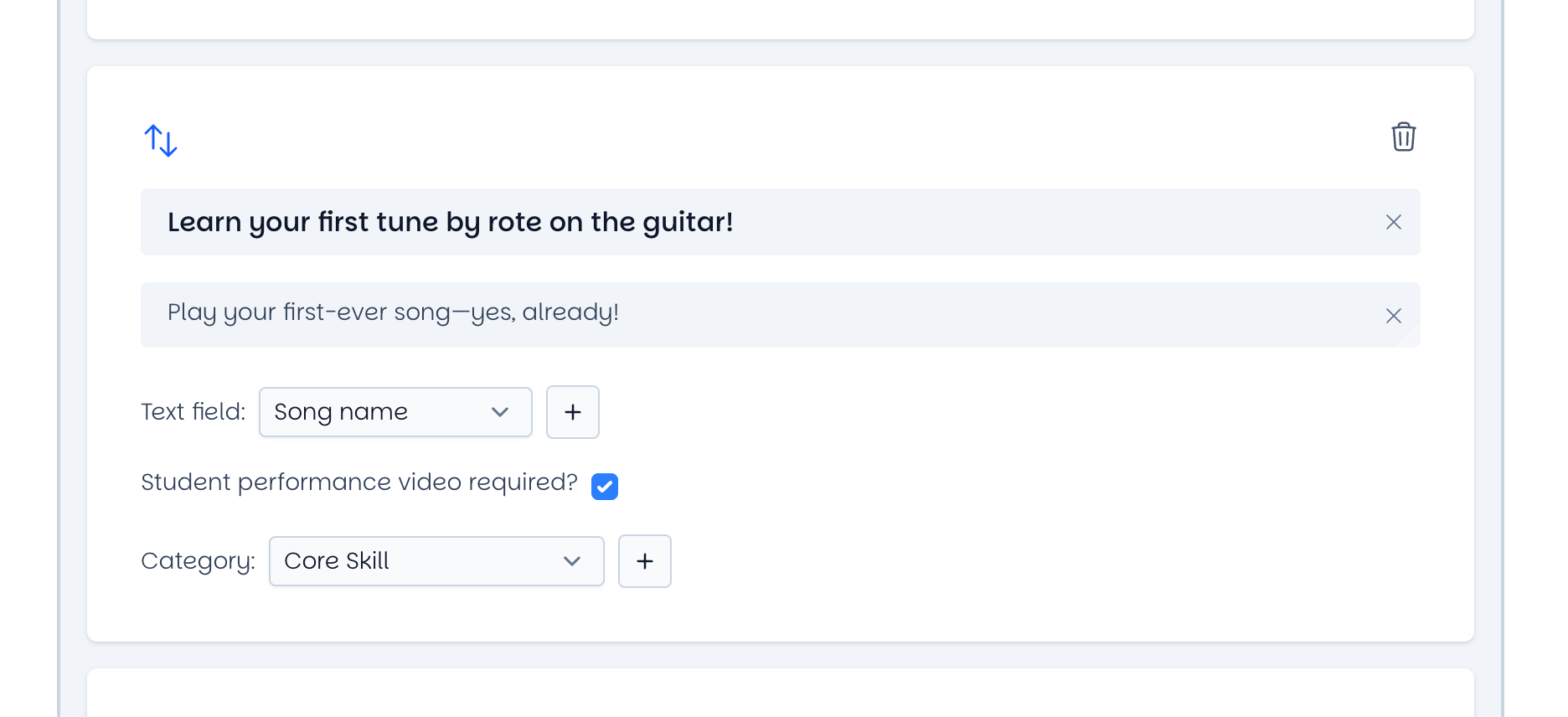
Skill name
What the student can do, stated plainly. "Play a C major scale, hands together." "Read a 4-bar melody at sight." Families read these in progress emails, so write them in language a non-musician parent understands.
Skill description
A sentence or two explaining what the skill means and why it matters. This is your chance to translate teacher-speak into family-speak - the description appears where families see progress.
Category
The purpose of the skill for student and teacher. Categories help teachers see at a glance what kind of work a skill represents and help you keep Levels balanced across technique, theory, creativity, and performance. (See: Skill Categories - The Blended Lesson Structure)
Video requirement
A yes/no setting: does completing this skill require a student performance video? Video-required skills produce the proof moments families love. A good Level mixes video skills (the demonstrable, watchable ones) with teacher-verified skills.
Teacher text field
A field the teacher fills in during the lesson - the song name, the exercise used, or a short note about how the student got there. It's optional per skill, but once a skill has a text field, it can't be marked complete until the field is filled in. This is what makes the automatic family email feel personal rather than generic. When you enable a text field on a skill, you're asking the teacher for a few words of context; use it for skills where the specifics matter (e.g., "Perform a full song" - which song?).
Skill type
Every skill has a type that decides how it's authored, started, and completed. Most skills are Studio skills - the kind described on this page, written entirely by you. Three special types change the rules: Teacher (an empty slot the teacher names with the student, video always required), Streak (an at-home practice streak of N days, never needs a video), and Throwback (the student revisits a skill they completed earlier and records it again, video always required). Teacher and Throwback skills take no name, description, video setting, or text field of their own - the type fills those in. (See: Skill Types: Studio, Teacher, Streak, and Throwback.)
Streak days
Only on Streak skills: how many days in a row the student needs to check in (any whole number from 1 to 365). The student, their family, or the teacher ticks off one box per day on the quest page, and the skill can be completed once the streak is finished.
How these fit together
When a teacher marks a skill complete, the name, description, video, and teacher note all flow into the family progress email and the family portal. The better these fields are written, the better every family email your studio sends becomes - without anyone writing an email.
Was this helpful?
Still need help? Ask the team