Exporting and Sharing Quests
Your curriculum travels: export any Quest to CSV, share it, adopt Quests from other schools.
Written By Dan
Last updated About 1 month ago
Any Quest in your account can be exported to a CSV file - and any exported Quest can be imported by any other Musician Quest school. Curricula travel.
Exporting a Quest
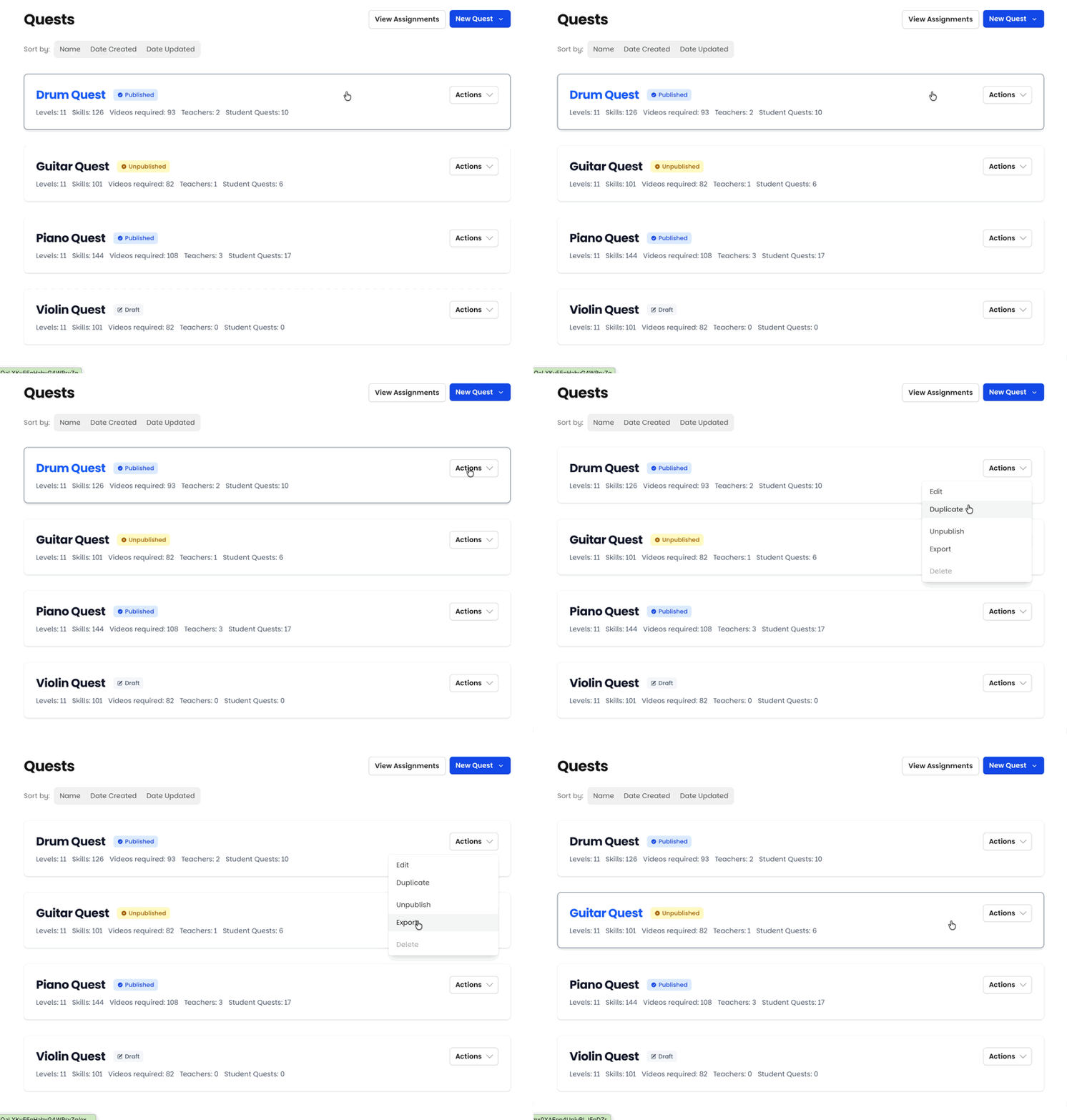
Go to the Quest tab on your Owner Dashboard.
Find the Quest, click on Actions and choose Export.
You'll get a CSV file in the standard Musician Quest format (see CSV Format Reference).
The export contains the full curriculum: every Level, every Skill, with descriptions, categories, video requirements, and text field settings intact.
Why export?
Share with another school. Send the file to a fellow studio owner; they import it and have your Quest running in minutes.
Adopt from another school. The reverse works too - a Quest another owner exports drops straight into your account via CSV upload.
Back up your work. Keep a copy of your curriculum outside the platform. Your curriculum is your intellectual property, and you can take it with you anytime.
Edit in bulk. Sometimes it's faster to rework descriptions across 60 skills in a spreadsheet than one at a time in the editor. Export, edit, and re-import as a new Quest.
A note on what travels
The export carries the curriculum itself - structure and content. Student progress, videos, and teacher assignments belong to your studio and are not part of a Quest export, so sharing a Quest never shares any student data.
Was this helpful?
Still need help? Ask the team