The Dashboard Home: Your Studio's Vital Signs
The owner dashboard home: quest coverage, the activity trend, the needs-your-attention cards, and the teacher and quest leaderboards.
Written By Dan
Last updated 29 days ago
This article is for studio Owners, Admins, and Managers. Teachers have their own dashboard - see The Teacher Dashboard: Your Month at a Glance.
The dashboard home is your studio's control room: coverage, momentum, and the handful of things that need your attention - all on one page the moment you log in.
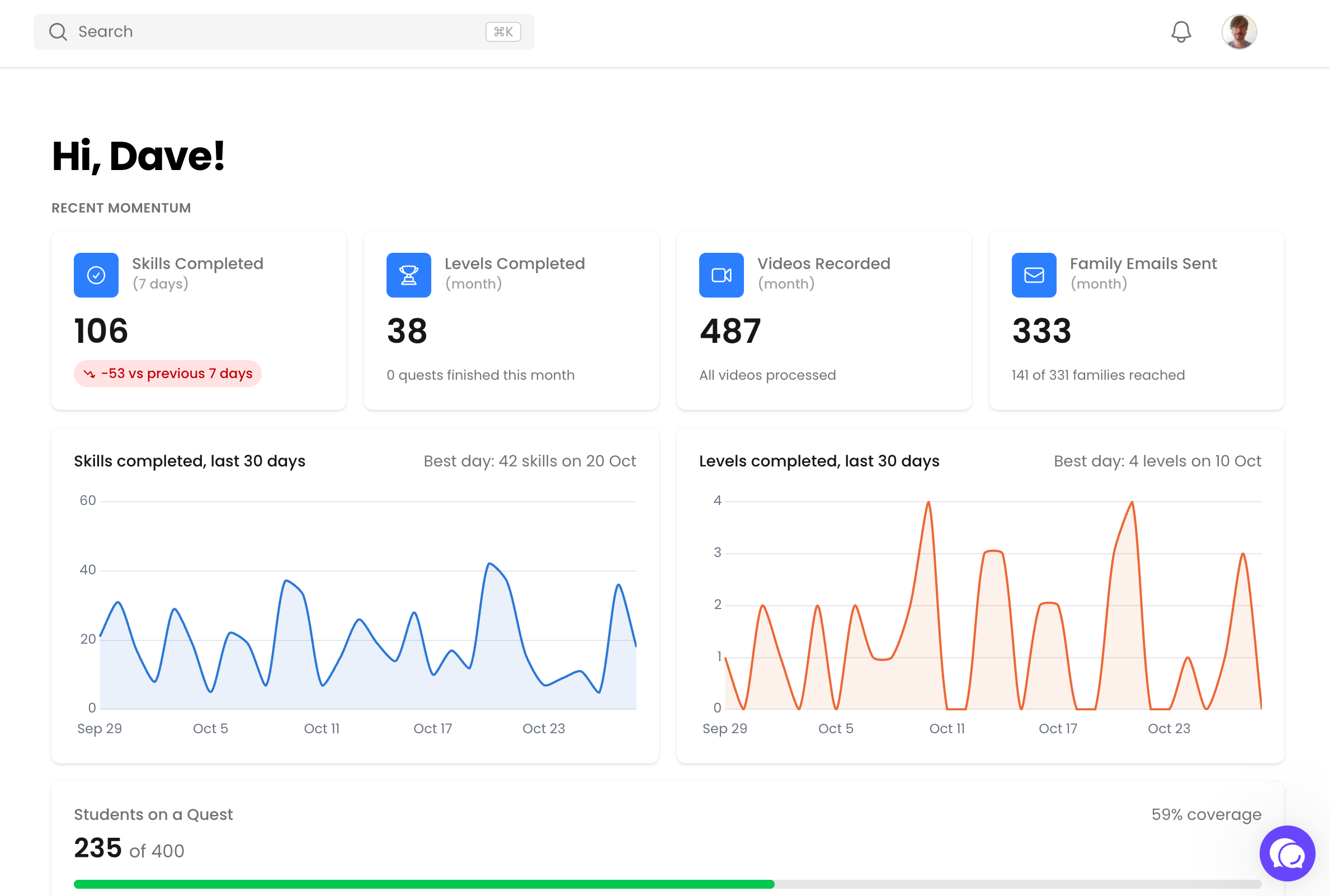
Everything on it refreshes as activity happens, so a quick scan after a busy afternoon reflects what your teachers just did.
Students on a Quest
The coverage card answers the first question that matters: how many of your students are actually on a Quest? It shows the count against your full roster with a progress bar and a coverage percentage. Unassigned students get no progress tracking and no family emails - so anything short of full coverage is enrollment value being left on the table. If your school has admin quest assignment enabled, an Assign quests link takes you straight to fixing it. (See: Assigning Quests on a Teacher's Behalf.)
/
Studio metrics and the activity trend
Stat tiles summarize your studio's recent activity - including how many of your families have been reached by progress emails - and an activity trend chart shows your studio's momentum over time.
Needs your attention
Three cards surface the students worth acting on this week, each with the specific names and a link to the full list:
Students who have gone quiet - on a Quest, but no logged activity recently. The default window is 21 days without activity, because a studio running fortnightly lessons would call two weeks normal.
Skills that are stuck - started but not completed for a while (28 days by default). Usually a video or text field away from done.
Students close to a Level - within a couple of skills of finishing a Level (2 by default). These are reward moments waiting to happen: make sure the pin or certificate is ready at the front desk.
When a card has nothing to show, it says "Nothing to action" - the goal is an empty section. The thresholds behind these cards can be tuned per school; contact support if your lesson rhythm makes the defaults too eager or too slow.
Teachers and quests
Two sortable leaderboards cover the last 30 days:
Teacher activity - each teacher's students (on quests vs. rostered), skills completed, videos recorded, and when they were last active. A teacher who's gone quiet gets a badge, so you know who might need a check-in before it shows up in family experience.
Quest health - each Quest's teachers, students, and skills completed in the window, with a health badge so a curriculum that's stopped moving stands out.
Click any sortable column to reorder; your sort stays in the page URL, so a refresh keeps it.
Getting Started
While your studio is setting up, the Getting Started checklist tracks the three core steps - Import Users, Import or Create Quests, and Assign Quests to Teachers - and marks each complete as you do it. Once you're past setup, the checklist can be hidden for your school on request.
One honest note about the numbers
If your school uses the student opt-out feature, opted-out students are excluded from every number on this page - coverage, attention cards, and leaderboards alike - so the dashboard reflects the students actually participating. (See: Opting a Student or Family Out of Musician Quest.)
Was this helpful?
Still need help? Ask the team